Organizational Chart Excel Template
Originally published: 27/10/2025 20:58
Publication number: ELQ-55216-1
View all versions & Certificate
certified

Organizational Chart Excel Template

This Organizational Chart Excel Template allows you to quickly and easily create a professional company organizational chart.

Description
Visualize your company structure effortlessly with this Organizational Chart Excel Template — designed for HR teams, startups, managers, and business owners.
Simply enter your company and employee details, then click Refresh on the Organizational Chart sheet — and the chart will automatically populate with your data.

Note:
This template uses a built-in Excel add-in that must be accepted once when you first open the Organizational Chart sheet.
To use this add-in, you must have an Office 365 Business or School account.


Explanation of Sheets

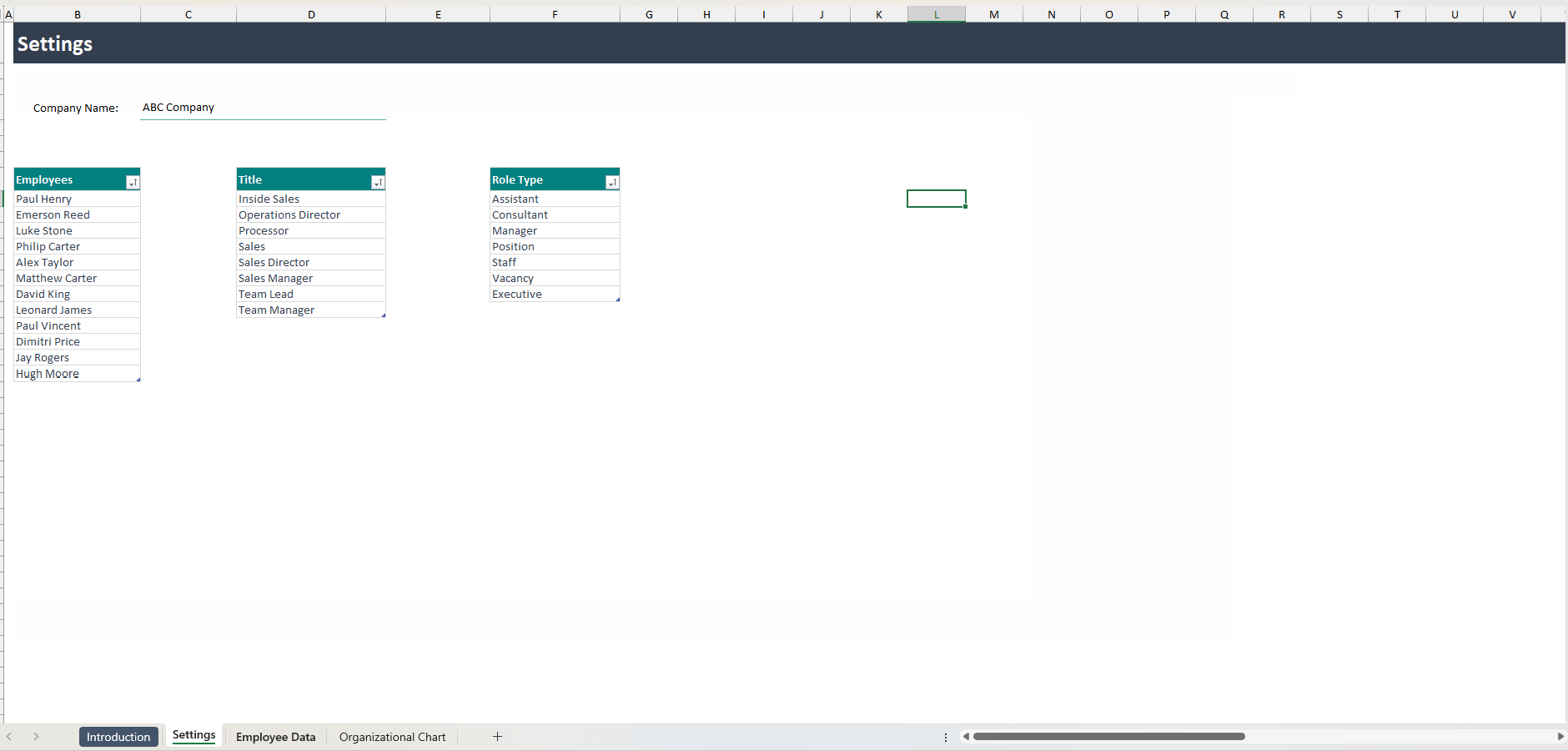
Settings Sheet
This sheet is where you enter a list of employee names, role types, and position titles that will appear in the drop-down menus on the Employee Data sheet.

Instructions:
  1. Enter your Company Name on the provided line — it will appear as the Organizational Chart title.
  2. Add all active employees you want to include in the chart. The table automatically expands as you add new names. If not, use the small dark triangle in the bottom-right corner of the table to expand it manually.
  3. To sort names alphabetically, click the gray arrow in the table header and select Sort A to Z.
  4. Enter all position titles in the Title table.
  5. Enter all role types in the Role table.

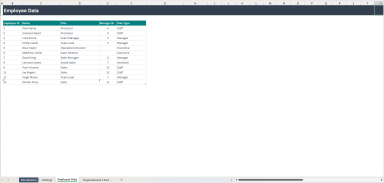
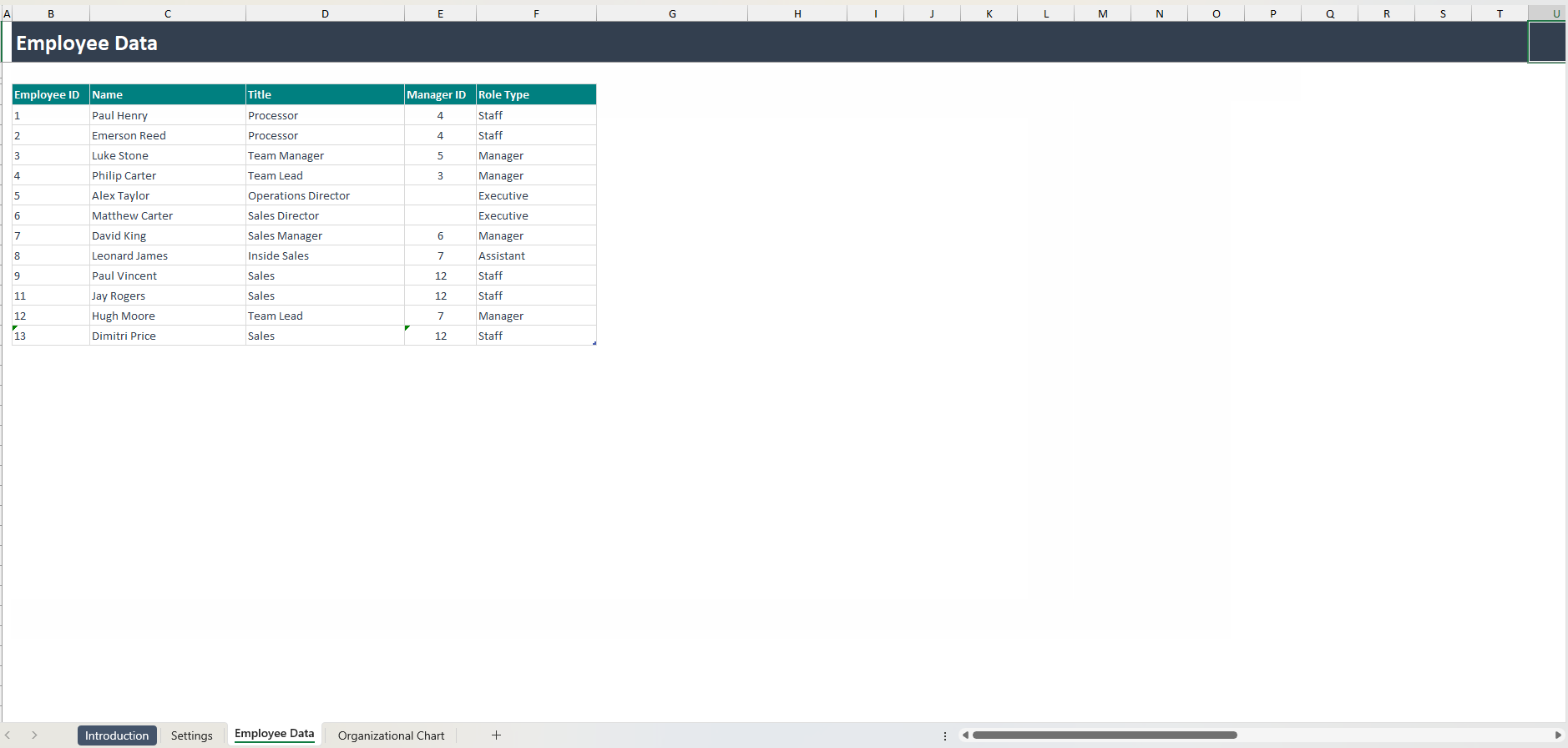
Employee Data Sheet
This sheet is where you enter each employee’s details and define their roles, titles, and management structure.

Instructions:
  1. Fill out each row completely for every employee.
  2. To add more employees, start typing on the line below the last row — the table will automatically expand and update drop-down menus.
  3. The table supports up to 100 employees.
  4. If the Manager field is left blank, that employee will appear as a top-level position (with no manager) on the Organizational Chart.

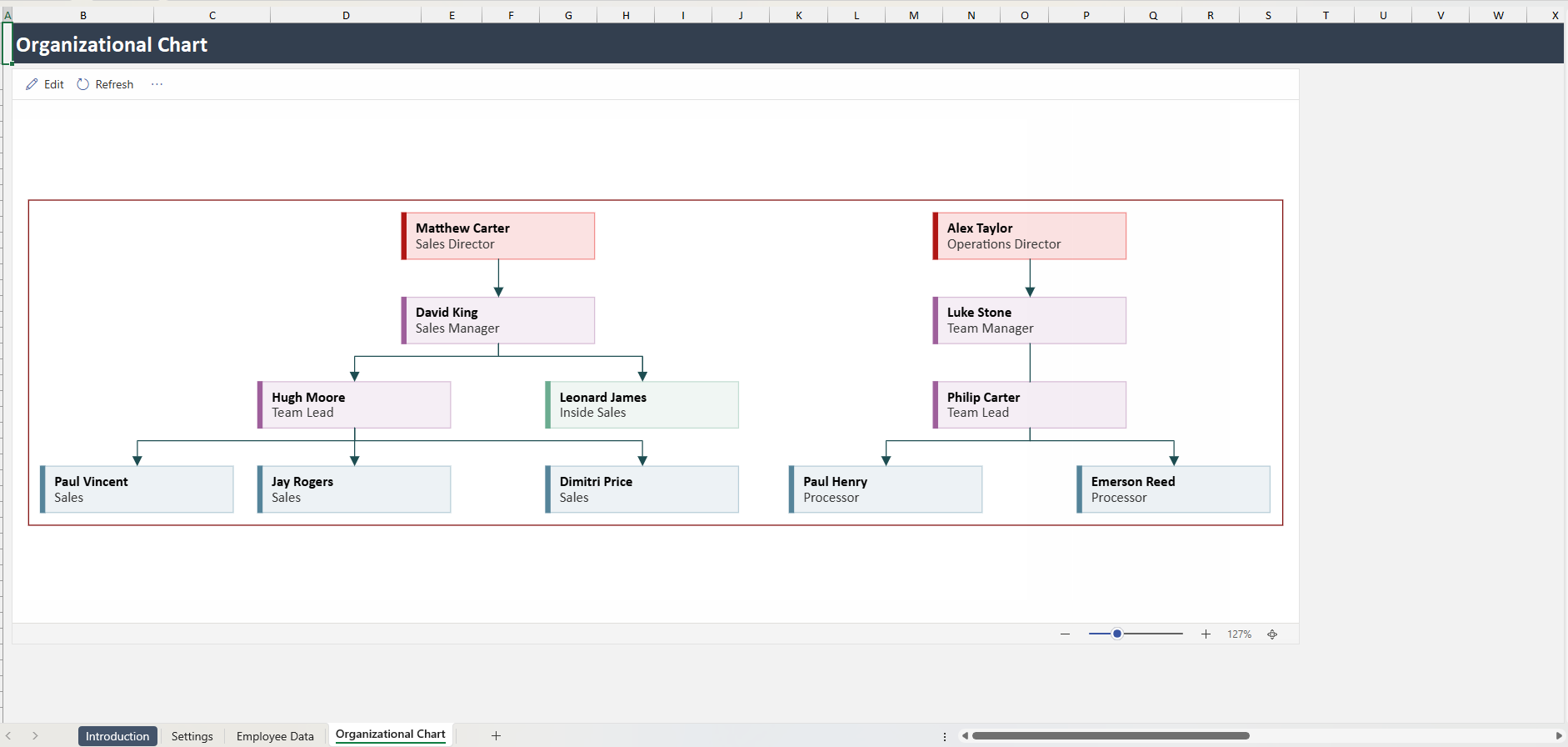
Organizational Chart Sheet
This sheet automatically generates the company chart based on the data entered in the Employee Data sheet.

Instructions:
  1. Click the Refresh button in the top-left corner to update the chart with the latest employee data.
  2. The Edit button should not be used on this sheet.

It’s a complete solution for mapping out roles, reporting structures, and team hierarchies in just a few clicks.

This Best Practice includes
Excel File

Acquire business license for $5.00

Add to cart

Add to bookmarks

Discuss


0.0 / 5 (0 votes)

please wait...